
Clone your voice
Upload a short recording, hear how the clone sounds, and narrate your videos in your own voice.
On this page
Step 1: Open Voice in Assets
In the left sidebar, click Assets, then the Voice tab. Under My voices, click Clone your voice.
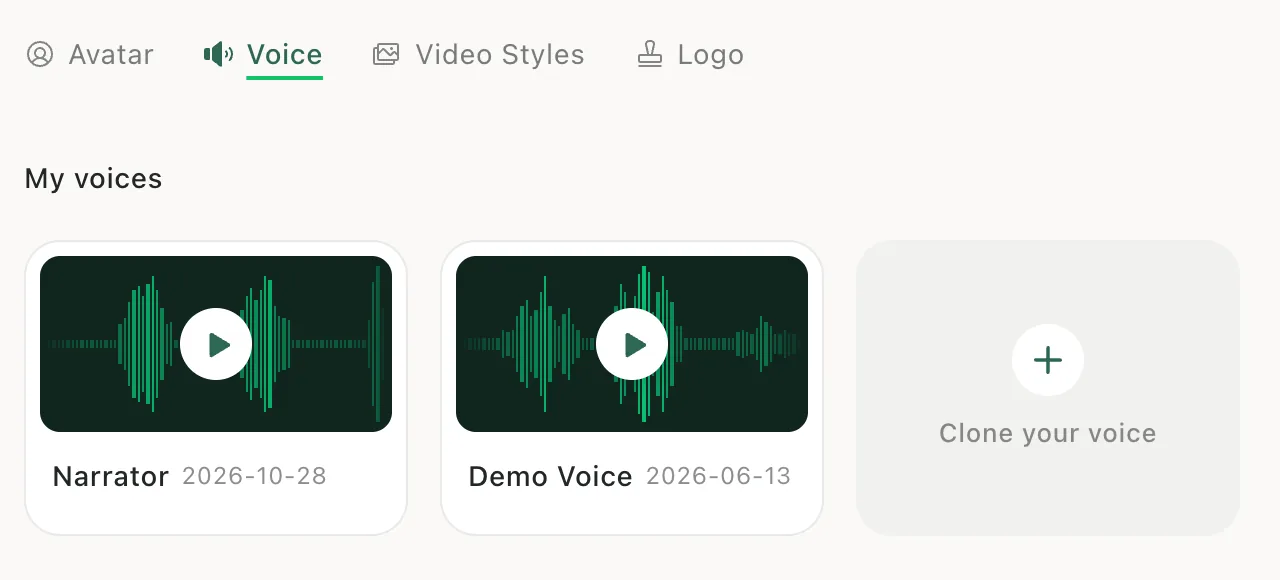
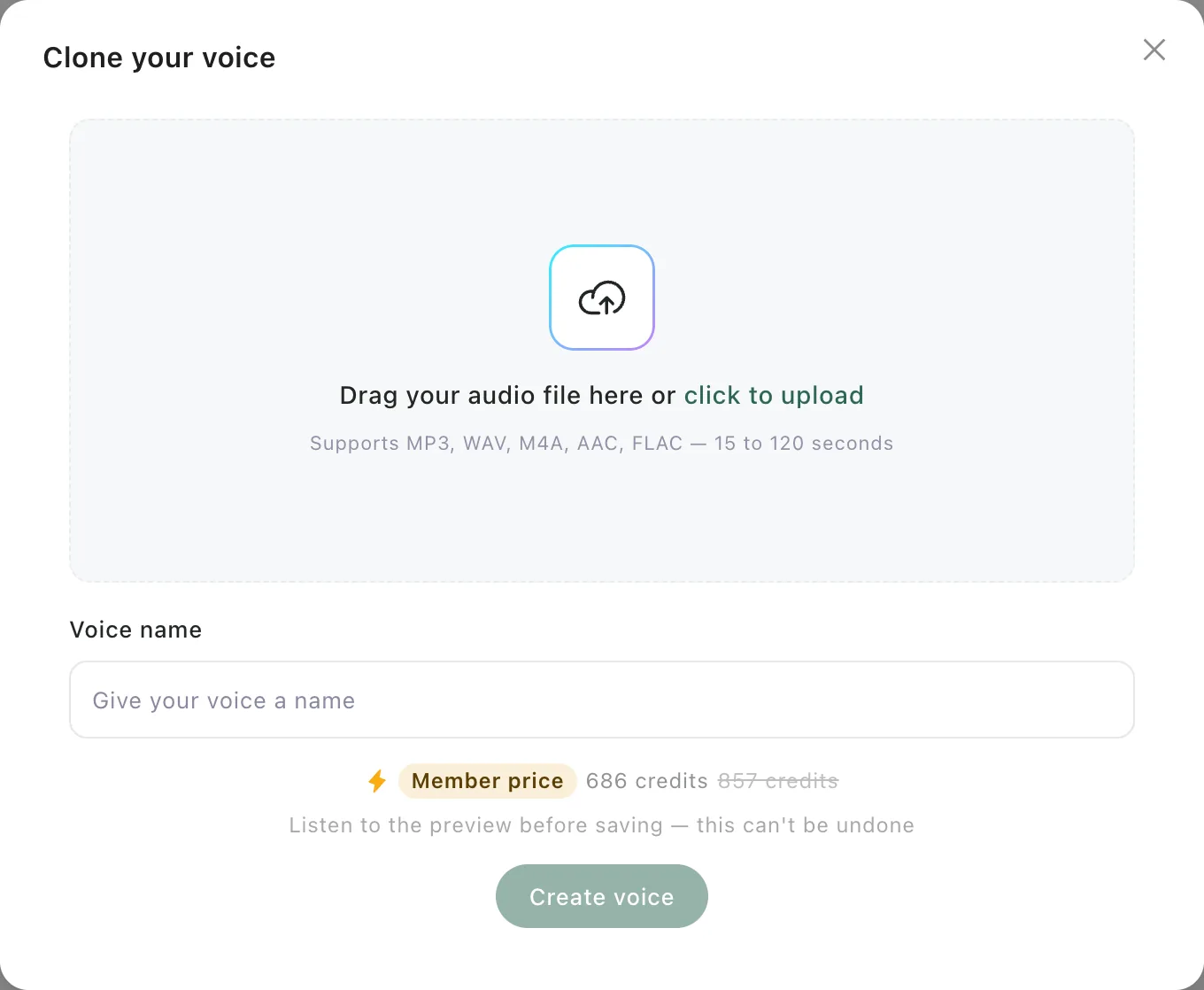
Step 2: Upload your recording
Drag in an audio file or click to choose one: MP3, WAV, M4A, AAC or FLAC, 15 to 120 seconds long. Cloning starts as soon as the file is in.
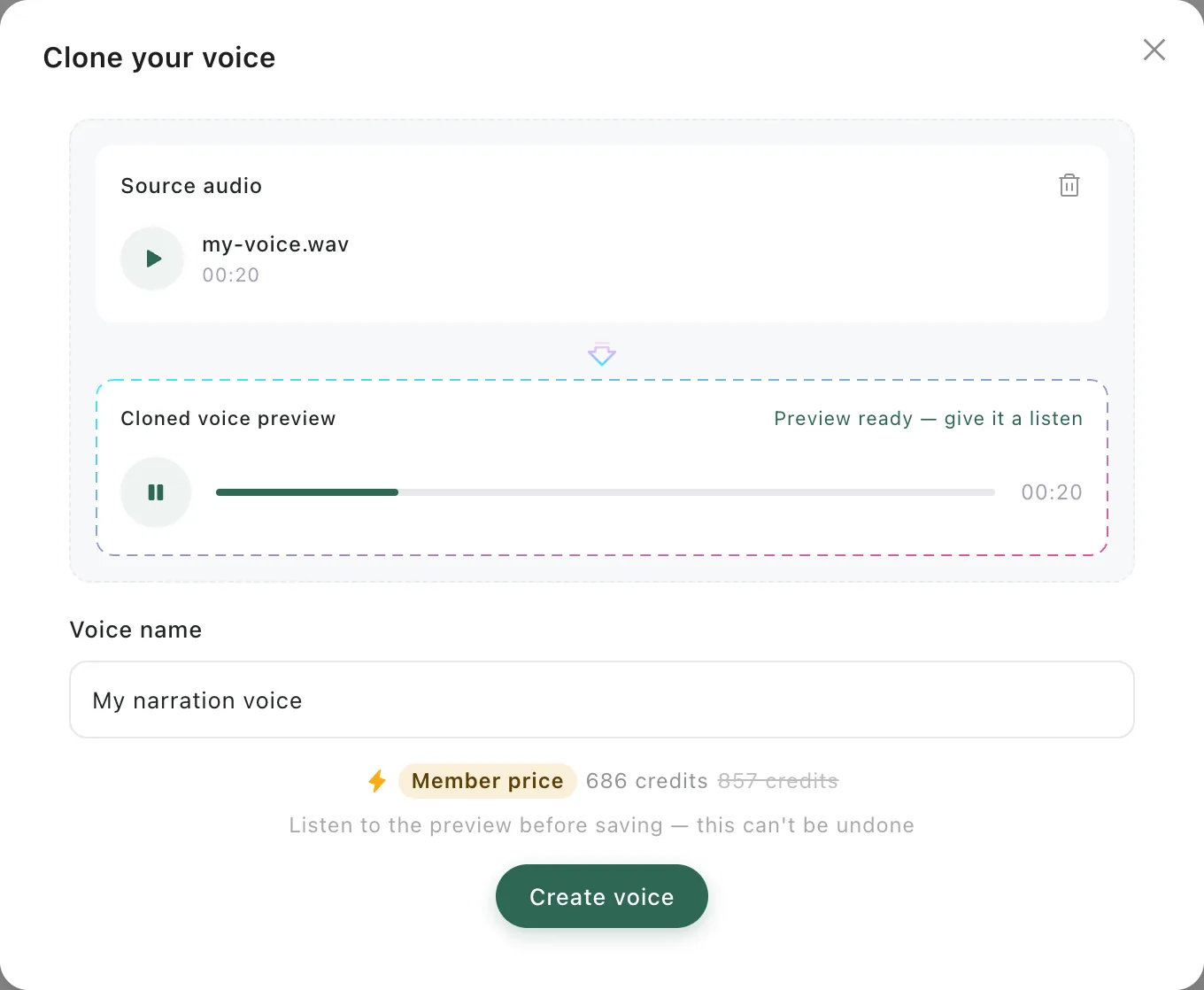
Step 3: Listen, then create the voice
When the preview is ready, play it and check that it sounds like you. If it does, give the voice a name and click Create voice. Uploading and previewing are free. Credits are only used at this step, and the amount is shown above the button. Paid plans get a member price.
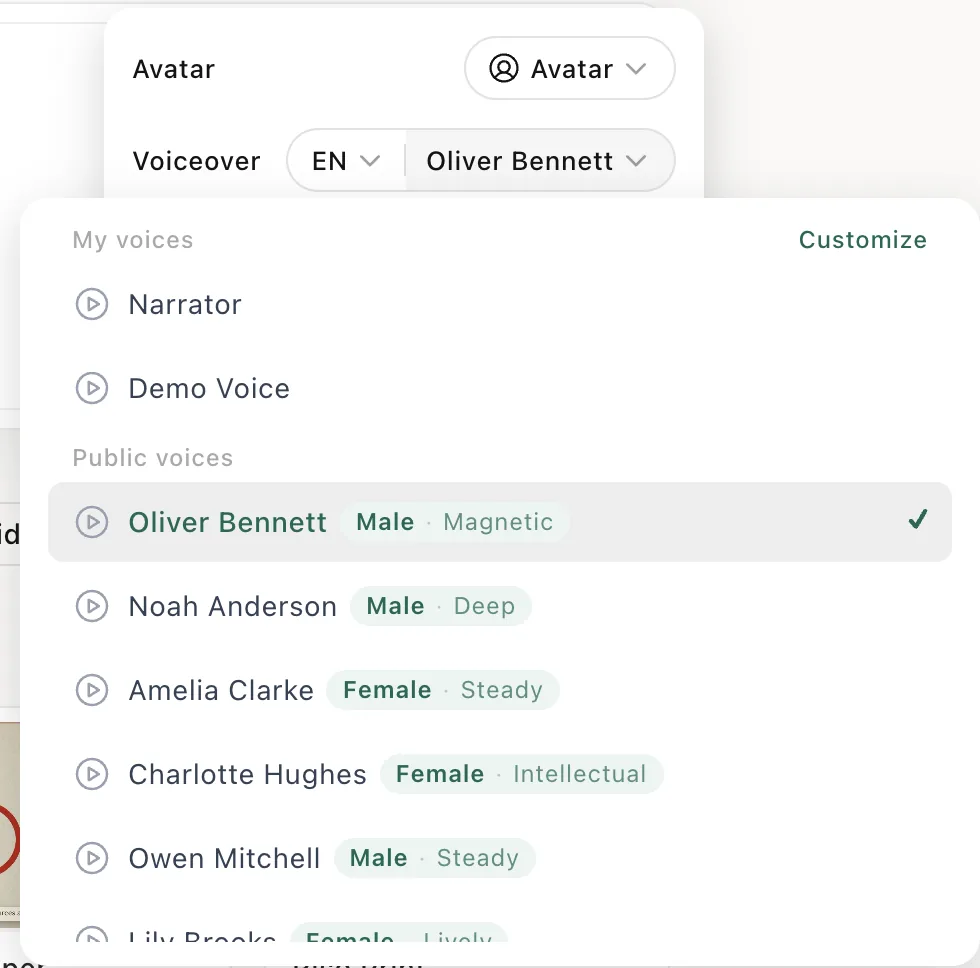
Step 4: Use it in a video
On the create page, open the voice menu at the bottom of the input box, click the voice name next to Voiceover, and pick your voice under My voices.
When to use it
Use it when viewers should hear a familiar voice: a teacher's own lessons, a founder's product updates, or a channel with a recognisable narrator.
Good to know
- Listen to the preview before you confirm. Creating the voice can't be undone.
- Use a clean recording of one person speaking, with little background noise.
- Only upload your own voice, or a voice you have permission to use.